Axon Automator
Coding · 2026–present · Active · Co-developer with Malik
Built with Python, Qt, OpenCV
A free Windows app I'm co-developing with Malik. Pick a picture of a button, icon, or popup, choose what to do when it appears, and press start: Axon watches the screen and acts for you. Automations are built on a canvas or recorded once. We started in late June 2026 and it's still in development.
What it does
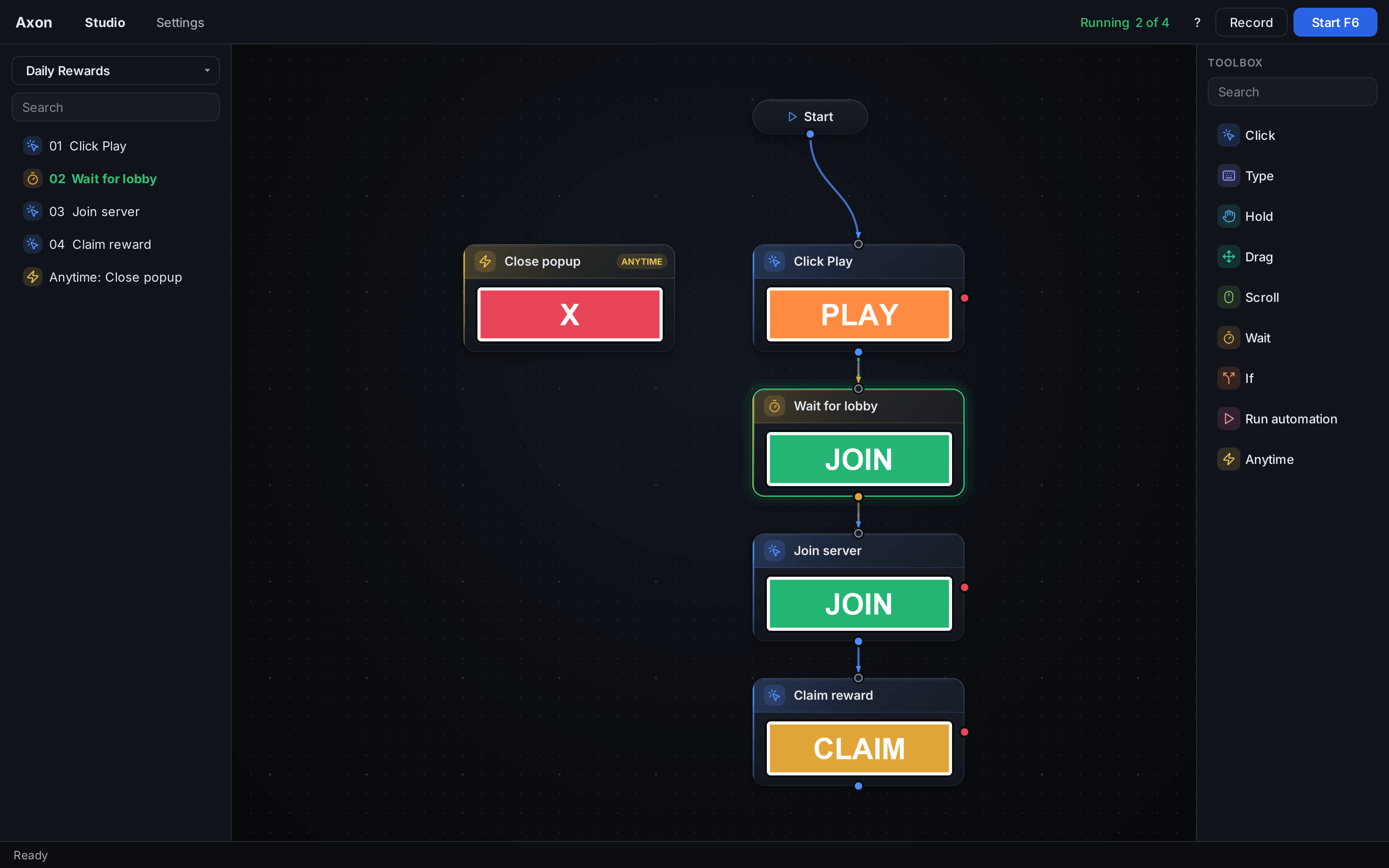
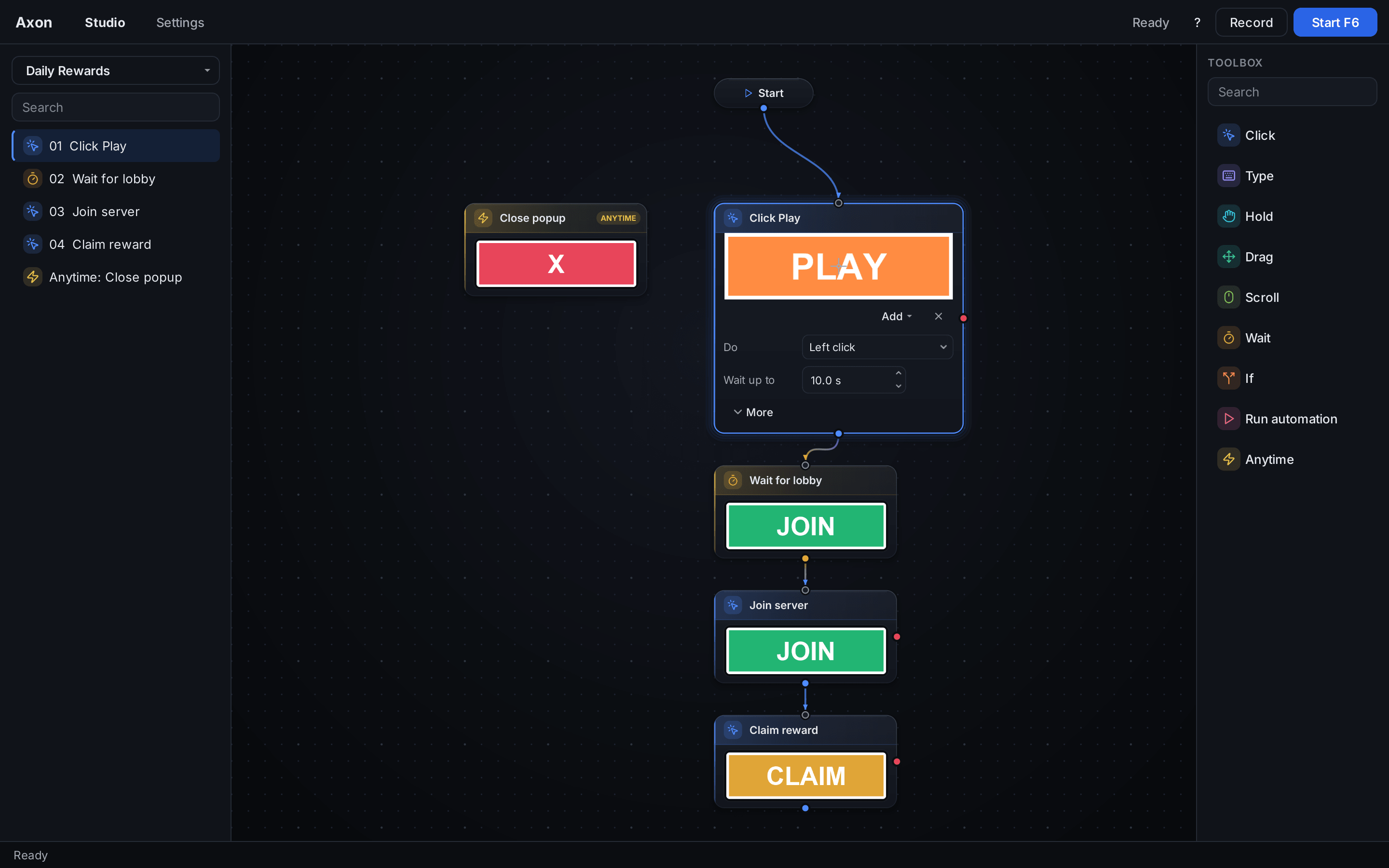
An automation is a chain of steps, each looking for a picture and acting when it finds one. F6 starts a run and F8 stops it.
- Nine step types: Click, Type, Hold, Drag, Scroll, Wait, If, Run automation, and Anytime.
- If branches on a picture, an open window, a running app, elapsed time, a timer, internet, or battery.
- Anytime handles a popup the moment it appears.
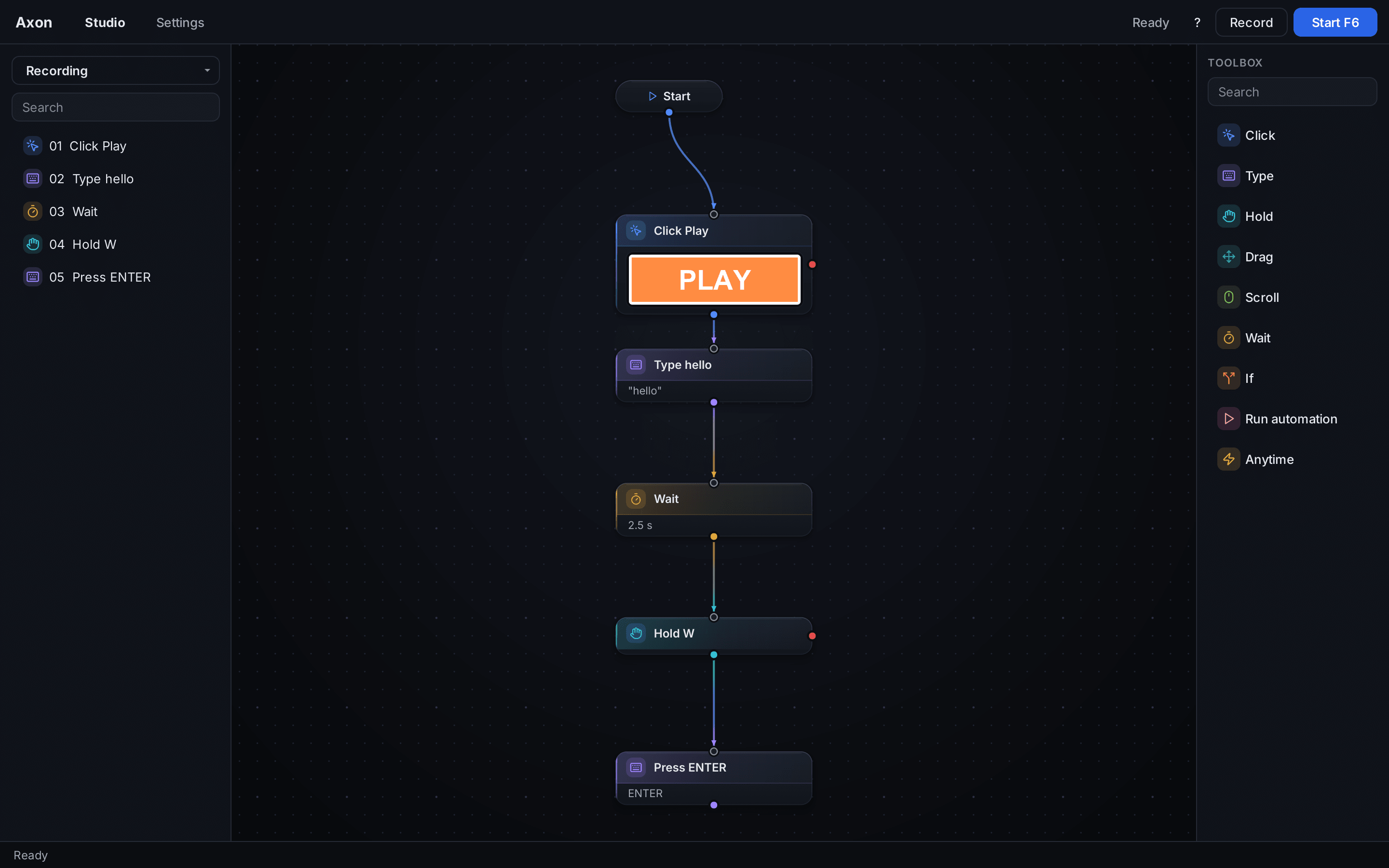
- Record (Ctrl+R) turns a task you do once into editable steps, including pictures, typing, and pauses.
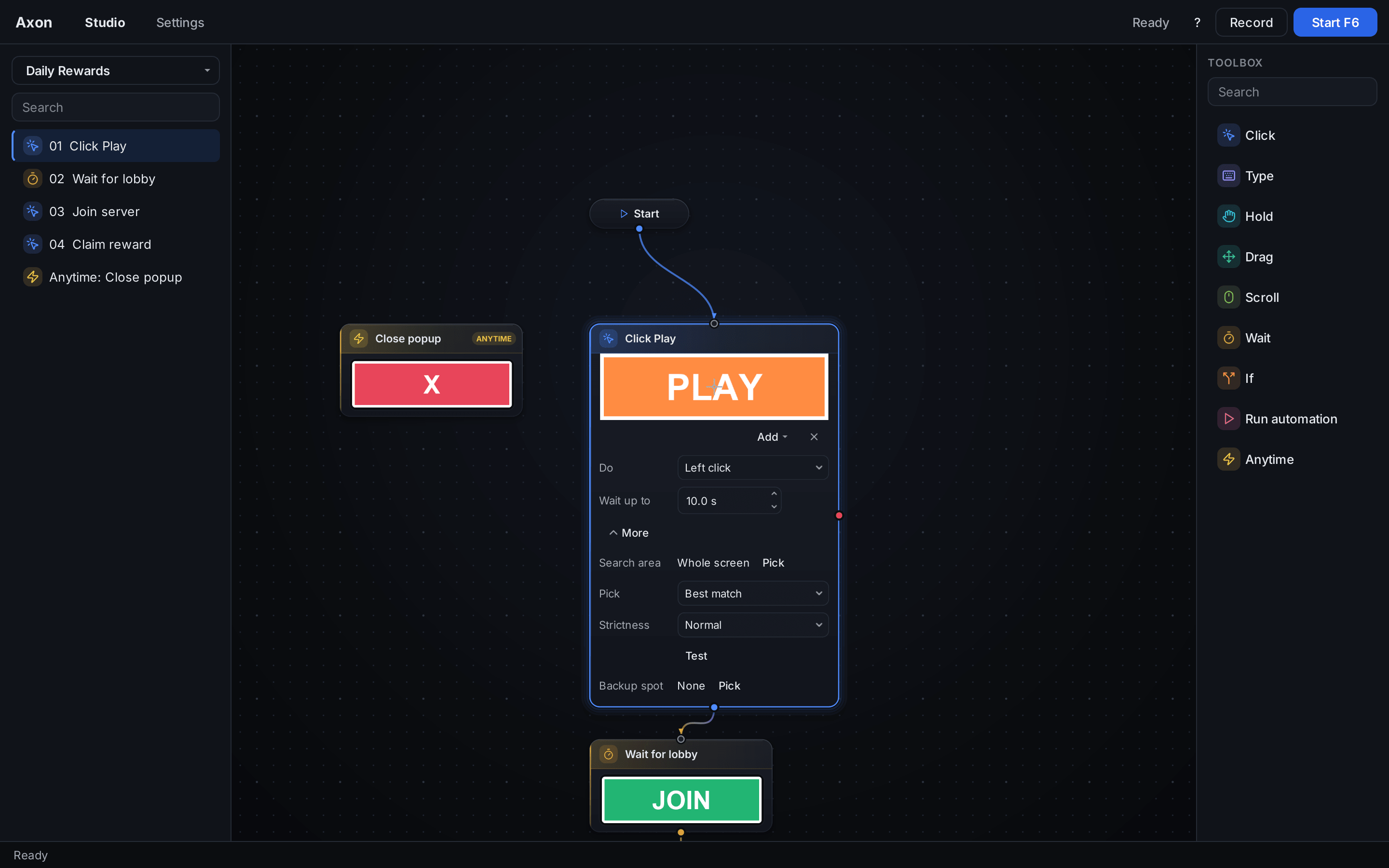
- Test shows where a picture is found and warns about multiple matches.
- No-go zones mark screen areas that must never be clicked.
- Automations export as a single .axon file.
How it works
Axon screenshots the display and uses OpenCV template matching to find each picture across monitors and resolutions, then sends real clicks and keypresses through Windows SendInput. If a picture is missing, a step can use a backup spot, follow a Missing wire to another step, or stop and report the failure. The interface is PySide6 (Qt).
What the app looks like
The Studio is a canvas of step cards joined by wires, each showing the picture it looks for, with automations on the left, a Toolbox on the right, and Record and Start in the top bar.